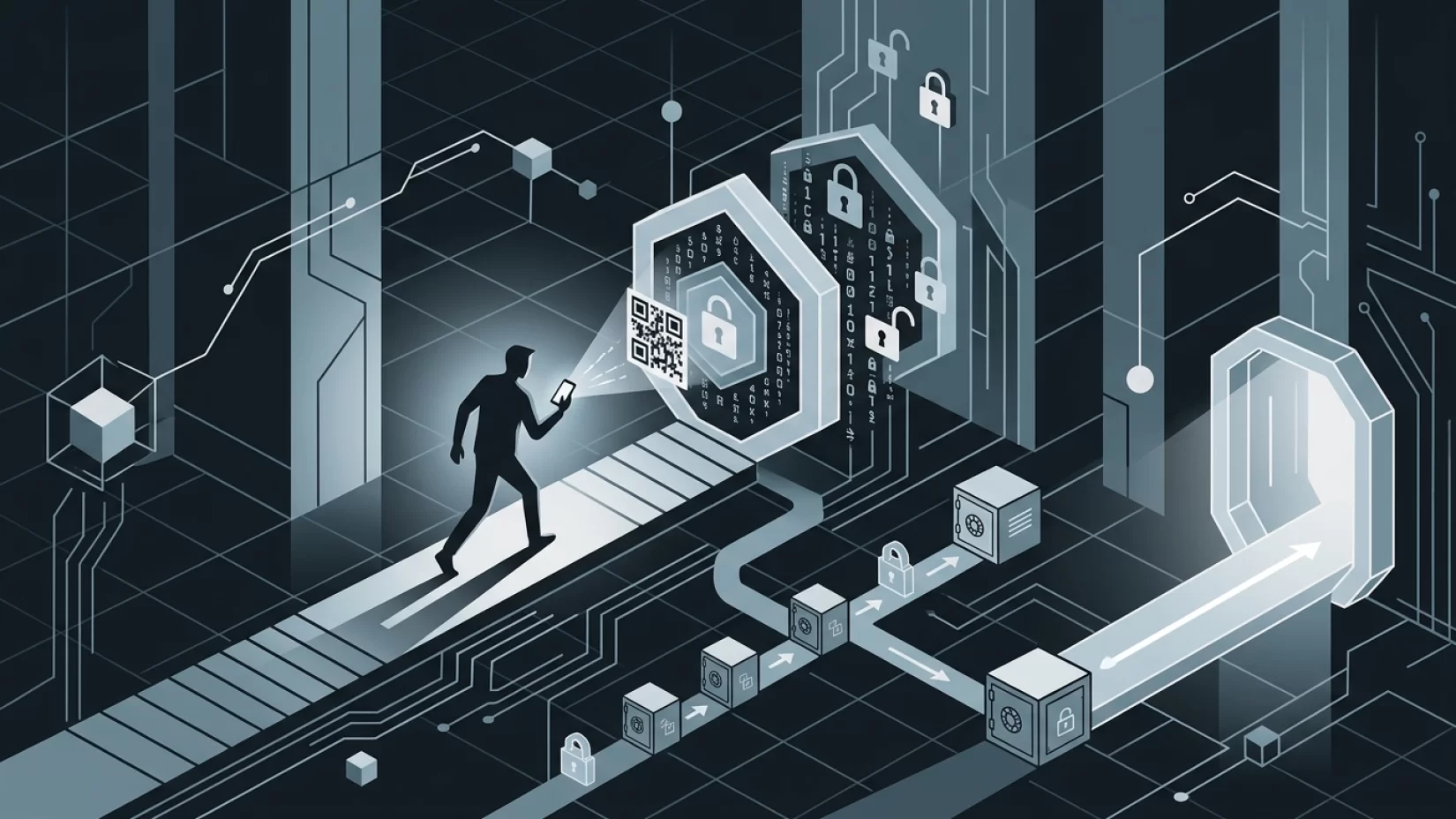
We all want to keep our online accounts safe — from our emails and banking apps to social media and cloud storage. Two-factor authentication (2FA) is one of the best ways to do that, and authenticator apps are at the heart of it. They’re far safer than those old SMS codes that hackers can intercept. But here’s the catch: if you don’t set up your authenticator app properly, or if you skip the backup step, you could end up locked out of your own accounts. That’s not just inconvenient; it can be a nightmare, especially if you rely on those accounts for work, finances, or keeping in touch with loved ones.
This guide will walk you through setting up an authenticator app the right way — step by step. We’ll cover how to back up your codes, what to do if you lose your phone, and the common mistakes that trip people up. This isn’t about making you worry. It’s about making sure you’re protected, confident, and in control — no matter what happens to your device.
Why Authenticator Apps Are Worth the Effort (And Safer Than SMS Codes)
First, let’s clear up why authenticator apps are such a big deal. When you turn on two-factor authentication (2FA) for an account, you’re adding an extra layer of security. Even if someone guesses or steals your password, they still need a special code to log in. Authenticator apps generate these codes on your phone or tablet. The code changes every 30 seconds and is unique to you.
Unlike SMS codes (those text messages you get when logging in), authenticator apps don’t rely on your phone number. That means hackers can’t just trick your mobile provider into transferring your number to their SIM card (a common scam called SIM swapping). It also means you’re protected if you travel or lose cell service.
Millions of people use apps like Google Authenticator, Microsoft Authenticator, Authy, and others. But — and this is important — they’re only secure and convenient if you set them up properly and have a backup plan. Otherwise, you could be locked out of your own life if your phone is lost, stolen, or just stops working.
Step-By-Step: How to Set Up an Authenticator App Properly
Let’s get practical. Here’s how to set up an authenticator app, using Google Authenticator as an example. The process is similar for most other apps.
- Download and install the authenticator app from your device’s app store. Popular choices include Google Authenticator, Microsoft Authenticator, Authy, Ente Auth, 2FAS, and Bitwarden.
- Open the app and follow the on-screen instructions to get started. Usually, you’ll need to allow camera access so you can scan QR codes.
- On your online account (like Gmail, Facebook, or your bank), go to the security settings and look for the option to enable two-factor authentication or 2FA. Choose the option for an authenticator app (sometimes called "TOTP").
- Scan the QR code displayed on your account’s website using your authenticator app. This links the app to your account and starts generating codes.
- Enter the code from your app into the website to confirm setup. Done! Now, every time you log in, you’ll use a fresh code from your app as your second step.
Don’t rush through this process. The next steps are just as important — and often overlooked.
Backing Up Your Codes: What Actually Works (And What Doesn’t)
This is where many people stumble. It’s easy to think, “I’ll just take a screenshot of the QR code and save it somewhere.” But that’s not really secure. Screenshots can be found by malware or anyone who gets access to your device. Worse, if you lose your phone and haven’t backed up the authenticator app, you could be locked out of all your accounts.
Here’s what actually works:
- Enable cloud backup or sync (if available). Some apps now let you securely back up your codes to your online account. For example, Google Authenticator recently introduced cloud sync (if you’re signed in with your Google account), and Authy has offered encrypted cloud backup for years. This means you can restore your codes on a new device if your phone is lost or replaced.
- Store recovery codes in a safe place. Most services that offer 2FA will give you a set of “recovery codes” when you set up two-factor authentication. These are like emergency keys. Save them in a password manager, or print them and keep them somewhere only you can access (like a safe or locked drawer).
- Use a password manager with built-in 2FA support. Some password managers (like Bitwarden or 1Password) can store your authenticator codes alongside your passwords. This isn’t for everyone, but it can simplify backup and recovery if you trust your password manager.
What doesn’t work? Relying on screenshots, emailing codes to yourself, or using multiple authenticator apps on different devices without proper syncing. These methods are either insecure or unreliable — and they can leave you stranded if something goes wrong.
Why Millions Of Users Never Realize Their Data Was Exposed
Most people don’t think about backup until it’s too late. The problem is, if you lose your phone or it breaks, you might not even realize you’re locked out until you try to log in to an important account. Suddenly, you’re scrambling to recover access — and every service has a different, sometimes slow, recovery process.
Real-world example: Someone loses their phone and has no backup of their authenticator app. They try to log in to their email and bank accounts, only to find they can’t generate the required 2FA codes. Now, they have to go through manual account recovery, which can take days or weeks, require proof of identity, and sometimes even fail. Meanwhile, bills go unpaid, work gets interrupted, and stress levels skyrocket.
This isn’t rare. It happens to millions of people every year. And it’s almost always avoidable with a little preparation.
Common Misconceptions That Put Your Access At Risk
- “Screenshots are a good backup.” They’re not. Screenshots can be stolen if your device is compromised, and they’re easy to lose or forget about.
- “I’ll just install the app on two devices.” Unless your authenticator app supports secure syncing (like Authy or the latest Google Authenticator), codes won’t automatically stay in sync. Setting up on a second device without proper sync can break things or create confusion.
- “I can always recover through customer support.” Some services make recovery easy, but others require paperwork, phone calls, or even a visit in person. Sometimes, recovery isn’t possible at all if you don’t have recovery codes or backup methods set up.
- “Cloud backup is risky.” While nothing is 100% risk-free, reputable authenticator apps encrypt your codes before uploading them. This is far safer than having no backup at all.
What Happens If You Lose Your Phone (And Your Authenticator App)
Let’s walk through a scenario. You drop your phone in a lake, or it’s stolen. Now what?
- If you have cloud backup or sync enabled: Install the authenticator app on your new device, sign in, and restore your codes. You’re back in business within minutes.
- If you saved recovery codes: Use those to log in to each service. Then, set up your authenticator app again and generate new codes.
- If you have neither: You’ll need to contact each service’s support team. Be ready to prove your identity. This process can be slow, stressful, and sometimes unsuccessful — especially if you lose access to your email, which is often required for recovery.
The emotional impact here is real. People report embarrassment, anxiety, and even financial loss while locked out. It’s not just about inconvenience; it can disrupt your work, finances, and relationships.
Five Steps That Actually Reduce Your Risk
- Choose an authenticator app with backup features. Google Authenticator (with cloud sync), Microsoft Authenticator, and Authy are good choices for most people.
- Enable backup or sync in the app settings. For Google Authenticator, sign in with your Google account and turn on cloud sync. For Authy, enable encrypted backups and set a strong backup password.
- Save recovery codes for every account you protect with 2FA. Store them in a password manager or print them and keep them somewhere safe.
- Test your backup method before you need it. Try restoring your codes on a different device (if possible) or use a recovery code to log in to a less important account. Better to find problems now than during a crisis.
- Review your accounts regularly. Make sure all your important accounts have 2FA enabled, and check that your backup plan still works (especially after getting a new phone).
Companies and Platforms: Who’s Doing It Right (And Who Isn’t)
Not all authenticator apps or online services handle backups and recovery well. Some platforms still don’t offer recovery codes or make it easy to back up your 2FA setup. That’s not acceptable in 2024. If you use a service that makes it hard to recover your account, consider letting them know it’s a problem — or even switching to a more responsible provider.
Authenticator apps are getting better. Google Authenticator’s new cloud sync is a big step forward, though some privacy advocates wish it offered more control over encryption. Authy’s encrypted backup is solid, but you have to set a backup password (and not forget it). Microsoft Authenticator also allows cloud backup with your Microsoft account. If your app doesn’t offer backup or recovery features, it might be time to switch.
What About Privacy? Balancing Security and Convenience
Some people worry that backing up authenticator codes to the cloud could put them at risk if a company is hacked. That’s a reasonable concern. The good news: reputable apps encrypt your codes before uploading them. That means even if someone broke into the cloud storage, they couldn’t use your codes without your password. Still, it’s smart to use a strong, unique password for your backup and your accounts. Avoid reusing passwords across services.
It’s also worth noting that you don’t have to use cloud backup if you’re uncomfortable with it. You can stick to offline recovery codes and a secure password manager. The key is to have a plan — and to test it before you need it.
Final Thoughts: Take Control, Don’t Leave It To Chance
Authenticator apps are one of the simplest, most effective ways to protect your online life. But like any tool, they only work if you use them wisely. Take a few minutes today to set up your app properly, enable backup or sync, and store your recovery codes somewhere safe. Test your backup plan before disaster strikes. It’s a small investment of time that can save you days of stress and hassle — and keep your accounts, money, and peace of mind right where they belong: with you.
Risk Level: High. While authenticator apps dramatically improve security, the risk of being locked out of your accounts if you don’t back them up is serious and affects millions. With a bit of preparation, you can avoid the worst-case scenario and use 2FA with real confidence.